

FiveM is a modding framework that lets you build your own multiplayer server using the PC version of "Grand Theft Auto V (GTA5)." It is FiveM that underpins the popularity of GTA roleplay (GTARP) in Japan, and the number of people standing at the entrance thinking "I want to try running a server myself" grows year by year.
That said, building a server is easy to stumble on at the very first step. This article explains, in eight steps, how a complete beginner can launch "a local test server that only you can join" and actually connect to it. Rather than aiming straight for a public server or a large framework like ESX/QBCore, the goal is to first get it running with a minimal setup. This looks like a detour, but in the end it is the fastest way to understand.
What to Check First — Pick the Wrong GTA5 "Edition" and It Won't Work
As of 2026, there are two Editions of the PC version of GTA5. Mix these up and you can spend hours and FiveM still won't launch. This is the single most important point to nail down first.
- GTA5 Legacy (the older version)
- GTA5 Enhanced (the enhanced version distributed in 2025)
As a confirmed fact, the FiveM available at the time of writing (June 2026) supports only the Legacy Edition and does not work on the Enhanced Edition. When you install FiveM, you need to point it at the Legacy-side GTA5.exe.
There is a catch in how you obtain it. On Steam, Legacy is no longer sold on its own; buying the Enhanced version comes with the Legacy version bundled in. In other words, the procedure is "buy Enhanced, then install and use the Legacy included within it." On the Epic Games version as well, you select and install Legacy from within your library.
As a side note, here is some fluid information. Cfx.re (the developer of FiveM) officially announced on March 18, 2026 that Enhanced support is in development and that early access for the community is planned to be provided within the next few months. Support for Legacy will continue, upgrading is not mandatory, and the policy is that Legacy and Enhanced clients will not mix on the same server. However, this is all still in development; as of this article, "if you are setting up a server, use Legacy" is the correct premise. Let us wait for further news on Enhanced support.
A List of What You Need
To set up a local test server, the bare minimum you should have ready is as follows.
- GTA5 Legacy (PC version / either Steam or Epic is fine)
- The FiveM client (for playing; install from fivem.net)
- The FiveM server artifact (the server itself; covered later)
- A Cfx.re account (the forum account; used for getting a key and for txAdmin authentication)
- A license key (free; covered later)
Of these, "the server artifact" and "the license key" are the two big hurdles for beginners. In this article, we walk through both of them via the procedure that is least likely to trip you up.
Grasp the Big Picture of a Server, Roughly
You do not need to understand the fine mechanics perfectly, but holding just an image of the components keeps you from getting lost in later work. A FiveM server runs on, broadly, the following elements.
- FXServer (the server itself; this is the app that launches the server)
- server-data (config files and resources; the contents of the server)
- txAdmin (the web management panel bundled with FXServer; lets you operate the server from a browser)
- A database (MySQL/MariaDB; not needed for a minimal test server)
At the first stage, an understanding of "the app that launches the game server, plus its set of settings" is enough. A database becomes necessary only later, when you reach the stage of introducing a life-sim framework like ESX or QBCore.
The Approach — Use txAdmin Rather Than Doing It by Hand
There are two ways to set up a server: the "manual method" of hand-editing server.cfg, and the "txAdmin method" of leaving it to the web management panel, txAdmin.

As a confirmed fact, the current FiveM server artifact comes with txAdmin bundled as standard, and Cfx.re officially recommends setup via txAdmin. txAdmin has a mechanism called a "Recipe": at first-time setup, you simply choose a template for a basic configuration, and it automatically downloads and places the whole set of necessary files (server-data) for you. The big win is that it lets you skip entirely the step where beginners get stuck most in the manual method — "obtaining server-data separately and placing it in the right location."
This article explains the txAdmin method as its main axis. The manual method is useful for understanding the mechanics, but it is a detour if your goal is to get your first server running.
STEP1: Download the Server Artifact
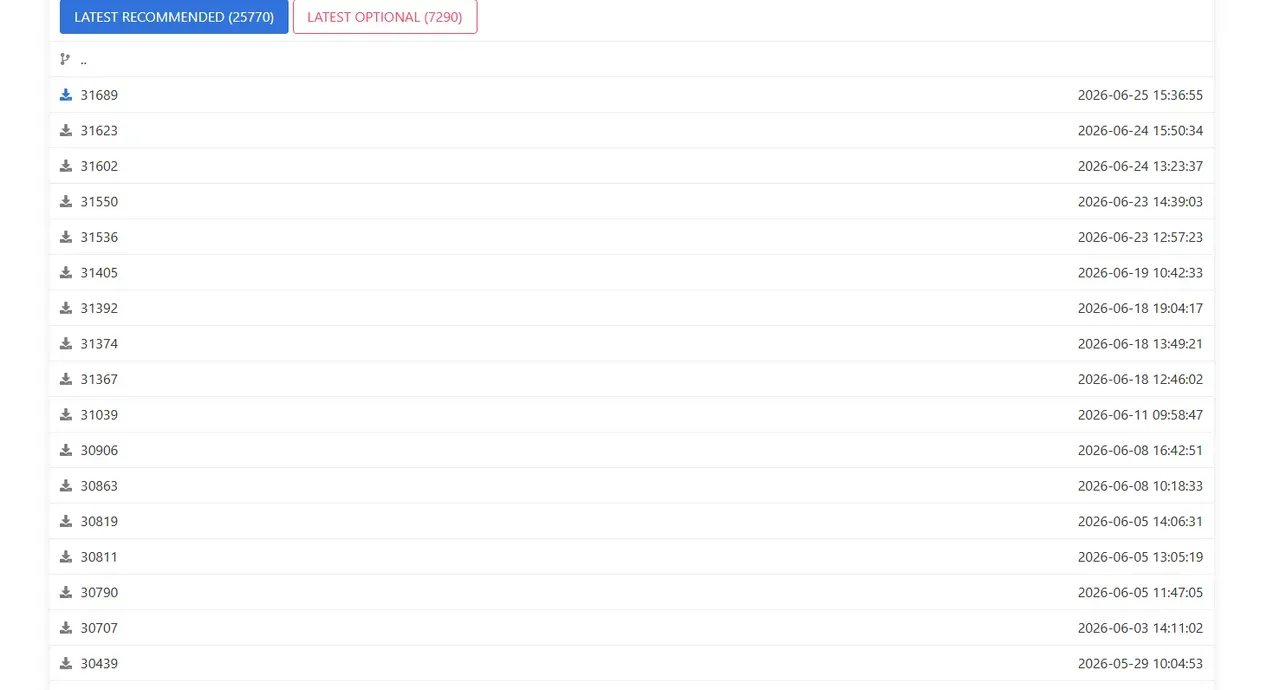
Obtain the server itself (FXServer). The official distribution page is the following.
From here, download the Windows version of the recommended build (the one marked "recommended"). The latest version is not always the most stable, so choosing the recommended build for your first time is the safe bet.
STEP2: Create a Server Folder and Extract Into It
Prepare a server folder in an easy-to-find location. As an example, use a structure like the following.
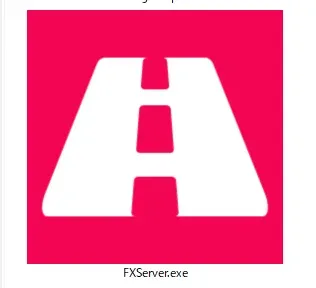
Extract the downloaded artifact and put its contents into C:\FXServer\server. You are fine once FXServer.exe is inside this folder. Note that the server-data folder will be prepared automatically later by txAdmin's recipe, so there is no need to create it by hand at this stage.
STEP3: Get a License Key
A FiveM server will not start without a license key (server registration key). The key can be obtained for free.
One point here requires caution. Many old explanatory articles guide you to press "New Server" on the key-issuing site "Keymaster (keymaster.fivem.net)." However, the new-key registration feature on Keymaster is now deprecated, and issuing new keys has been moved to the Cfx.re Portal. If you open "New server" on Keymaster, you get a notice prompting you to use the Portal.
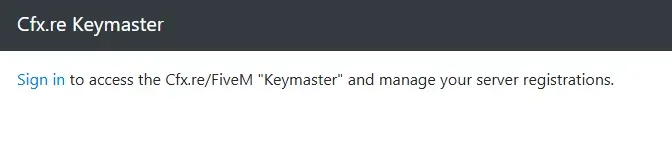
For that reason, get the key from the following Portal.
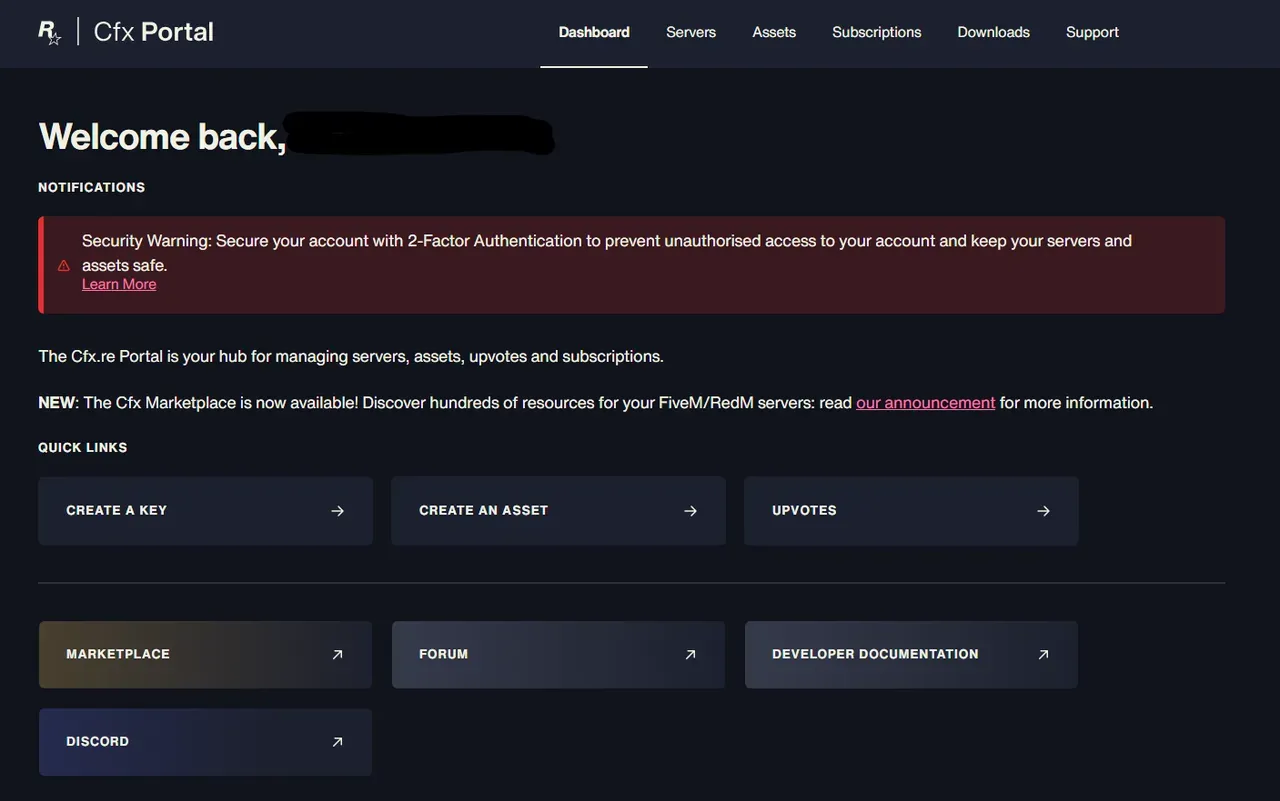
The procedure is as follows.
- Sign in with your Cfx.re account (if you do not have an account, create one first)
- Go to the Server Registration Keys section
- Choose create (new)
- Enter the server's display name and press Generate
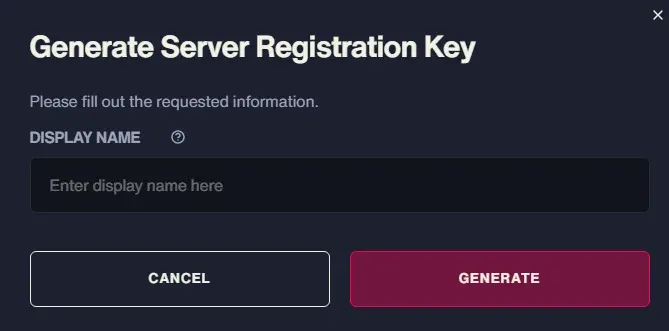
The issued key is a long string beginning with cfxk_. This is confidential information on par with a password, so do not paste it on social media or public repositories. If you suspect the key has leaked, you can regenerate that key on the Portal. After regenerating, be sure to update the key in your server settings to the new one as well.
Note that managing and viewing existing keys is still possible on the Keymaster side, but using the Portal for new issuance is the current correct procedure.
STEP4: Launch FXServer and Open txAdmin
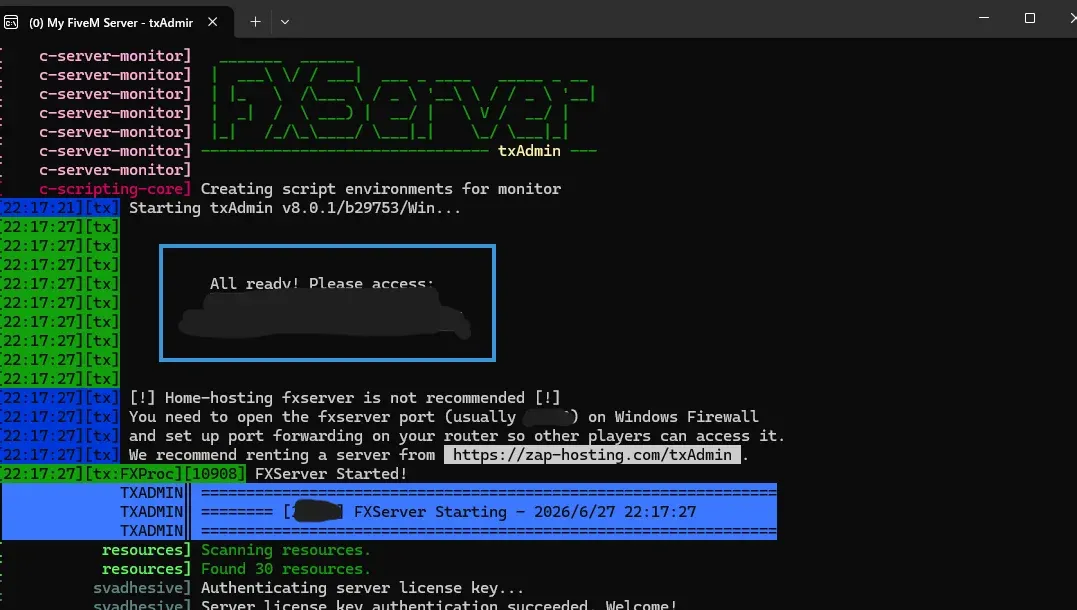
Double-click FXServer.exe inside the C:\FXServer\server folder to launch it. A black console screen starts up, and txAdmin launches. The console shows a link for opening it in a browser. It is usually the following address.
Open this address in a browser. If a PIN (passcode) is shown in the console, enter it on the authentication screen.
STEP5: Link Your Cfx.re Account and Create a Master Account
On txAdmin's first launch, a setup wizard appears. First you are asked to link your Cfx.re account, so authenticate by following the on-screen instructions. This is the mechanism by which txAdmin identifies its administrator.
Next, set a backup password for when login fails. The master account you create here holds the highest level of authority, so the iron rule is not to share it with anyone but yourself. When you add staff, separately add administrator accounts with restricted permissions later.
STEP6: Choose a Recipe and Deploy
After entering the server name in the wizard, choose the Deployment Type. For your first server, the easiest option is "Popular Recipes," which uses ready-made templates.
For your first test server, choose a basic recipe like CFX Default or FiveM Basic. You can also choose ESX or QBCore recipes, but these come with database setup and a large number of resources, so it is better to finish confirming operation with a minimal setup first. If you load an entire life-sim framework from the start, it will almost certainly stop working.
When you choose a recipe, txAdmin automatically downloads the whole set of necessary files and builds the server-data.
STEP7: Enter the License Key and Start the Server
Partway through the wizard, you are asked to enter the license key you obtained in STEP3 (the string beginning with cfxk_). Paste only the key, accurately, with no stray spaces or quotation marks before or after it. A copy mistake here leads directly to "license key not specified"–type errors.
Once you are done entering it, start the server (Save & Start Server). If the server goes online in txAdmin's dashboard, you have succeeded.
STEP8: Connect from the FiveM Client
Finally, actually enter your own server from the game side. Launch the FiveM client, press the F8 key to open the console, and enter the following command there.
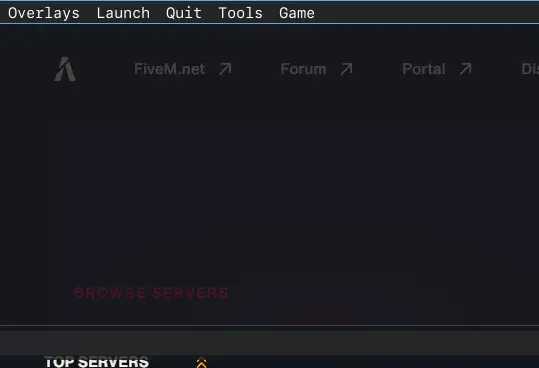
connect 127.0.0.1 also works. If you get into the game after the loading screen, launching the local test server is complete. Once you make it this far, you will have experienced the basics of FiveM server building from end to end.
Common Beginner Errors and Fixes
- It launches but you cannot get in via FiveM / GTA crashes: Check whether you put FiveM into GTA5 Enhanced. FiveM needs you to point it at the Legacy-side
GTA5.exe - "License key not specified"–type errors: A copy mistake with the key, or stray spaces / quotation marks mixed in. Re-paste just the
cfxk_string, accurately - The key is not authenticated: Check that the key string is correct and that you are not using the same key on another server at the same time. If you suspect a leak, regenerate the key on the Portal
- A friend cannot get in: With a local connection, only you can get in. To let others in, you need to open the game port (usually 30120 / both TCP and UDP) or set up port forwarding
- The txAdmin screen will not open: Check whether the
localhost:40120port conflicts with other software, or whether it is blocked by a firewall
Next Steps
Once the local test server is running, you enter the stage of adding features little by little. The recommended order is as follows.
- Introduce an admin menu (a player-facing admin menu such as vMenu)
- Fix the spawn point (make it so you appear at arbitrary coordinates on login)
- Add vehicles and emotes
- Add maps (MLO)
- Introduce a framework such as ESX or QBCore
- Migrate to a VPS (turning it into a public server that friends and general players can join at any time)
In recent years, it has also become common to use AI coding assistance to create your own lightweight standalone resources that do not depend on a framework. Once you understand the structure of fxmanifest.lua and the client/server scripts, you can write small features like spawn control and respawn handling yourself. Rather than diving into a huge framework from the start, running small self-made resources on a lightweight server actually advances your understanding of the structure faster.
Once it takes shape as a public server, you move on to the stage of recruiting players. GTA6 FEED's FiveM/GTARP category has a server recruitment board you can use to advertise your finished server. Building one server that runs stably is the first step toward that.
On the Reliability of the Information and Sources
The procedures in this article are composed by referring to Cfx.re's official documentation and the latest guides from various hosting providers (as of 2026), and by verifying them independently. The procedures described are confirmed information, but with FiveM version updates, the on-screen display and the details of the recommended build may change. In particular, the descriptions regarding Enhanced support are fluid, in-development information, so please be mindful that they may change going forward.
Main references:
- Cfx.re Docs "Setting up a server using txAdmin" (docs.fivem.net)
- Cfx.re Portal / issuing a server registration key (portal.cfx.re)
- Cfx.re official support "How to create a server registration key for your FiveM/RedM server" (support.cfx.re)
- The FiveM server artifact distribution page (runtime.fivem.net)
- Cfx.re development update (the March 18, 2026 announcement regarding GTA V Enhanced support)
This article is a fan explanation and has no relationship whatsoever with Rockstar Games, Take-Two Interactive, or Cfx.re.